
How to Customize Your Basement Profile
Learn how to personalize your Basement profile with custom avatars, usernames, themes, and hand-drawn signatures
Your Basement profile is your digital identity on the Basement platform. You can customize your avatar, choose a unique name, and display a badge that represents your style. Whether you're setting things up for the first time or updating your look later, personalizing your profile helps you stand out and feel more connected.
Customizing Your Profile for the First Time
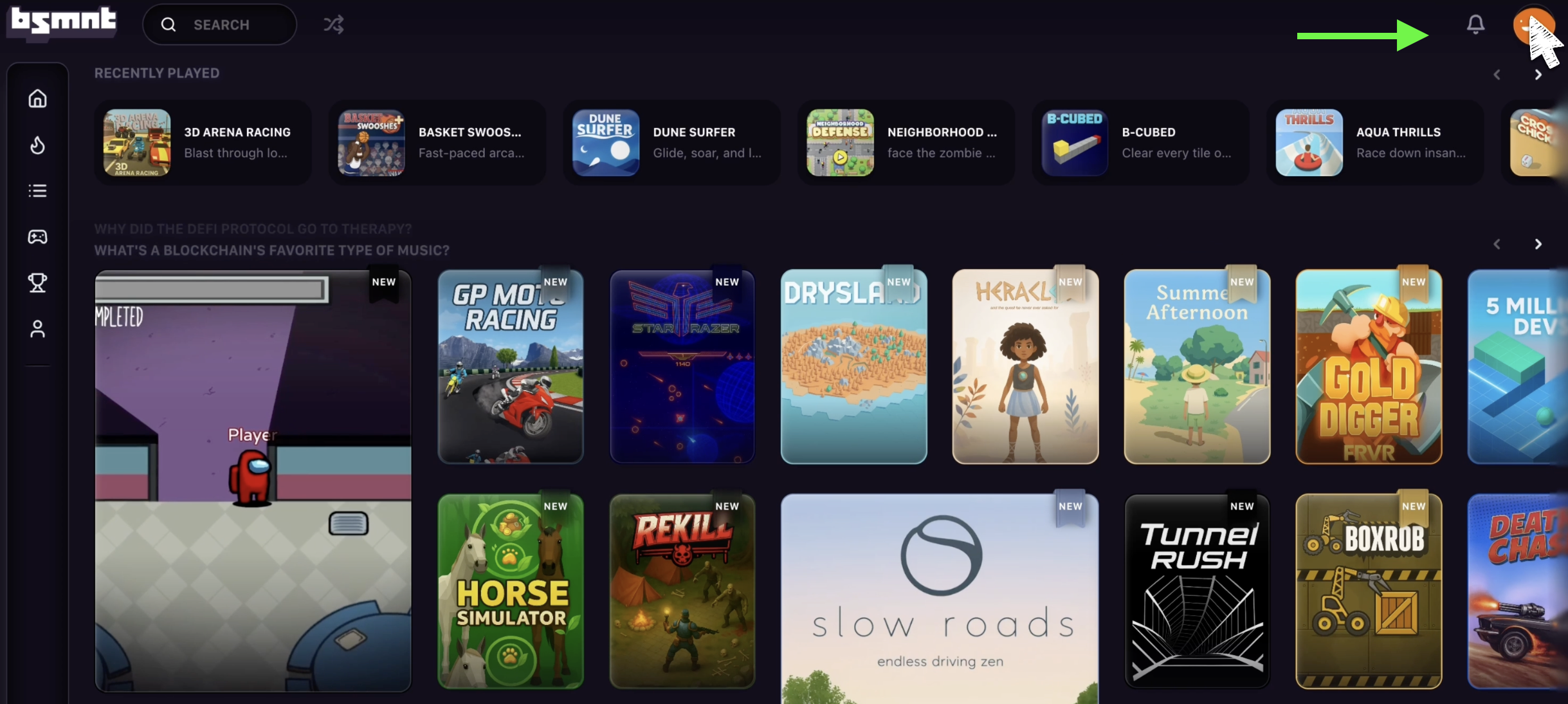
Open the account menu
Click your avatar in the top right corner to open the account menu.
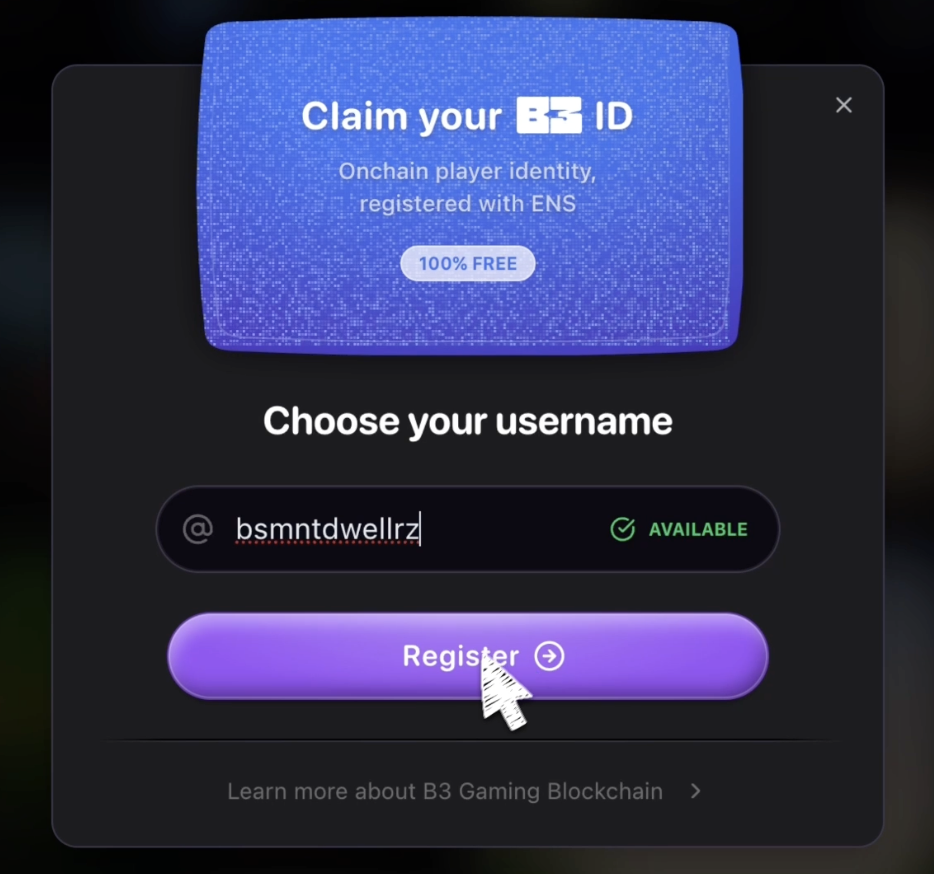
Register your name
Enter your desired name, and then click Register.
Customize your avatar
Next, you'll be guided through customizing your avatar. This is your chance to make it truly yours by choosing a gender, adjusting physical features, and picking the outfit that best fits your style.
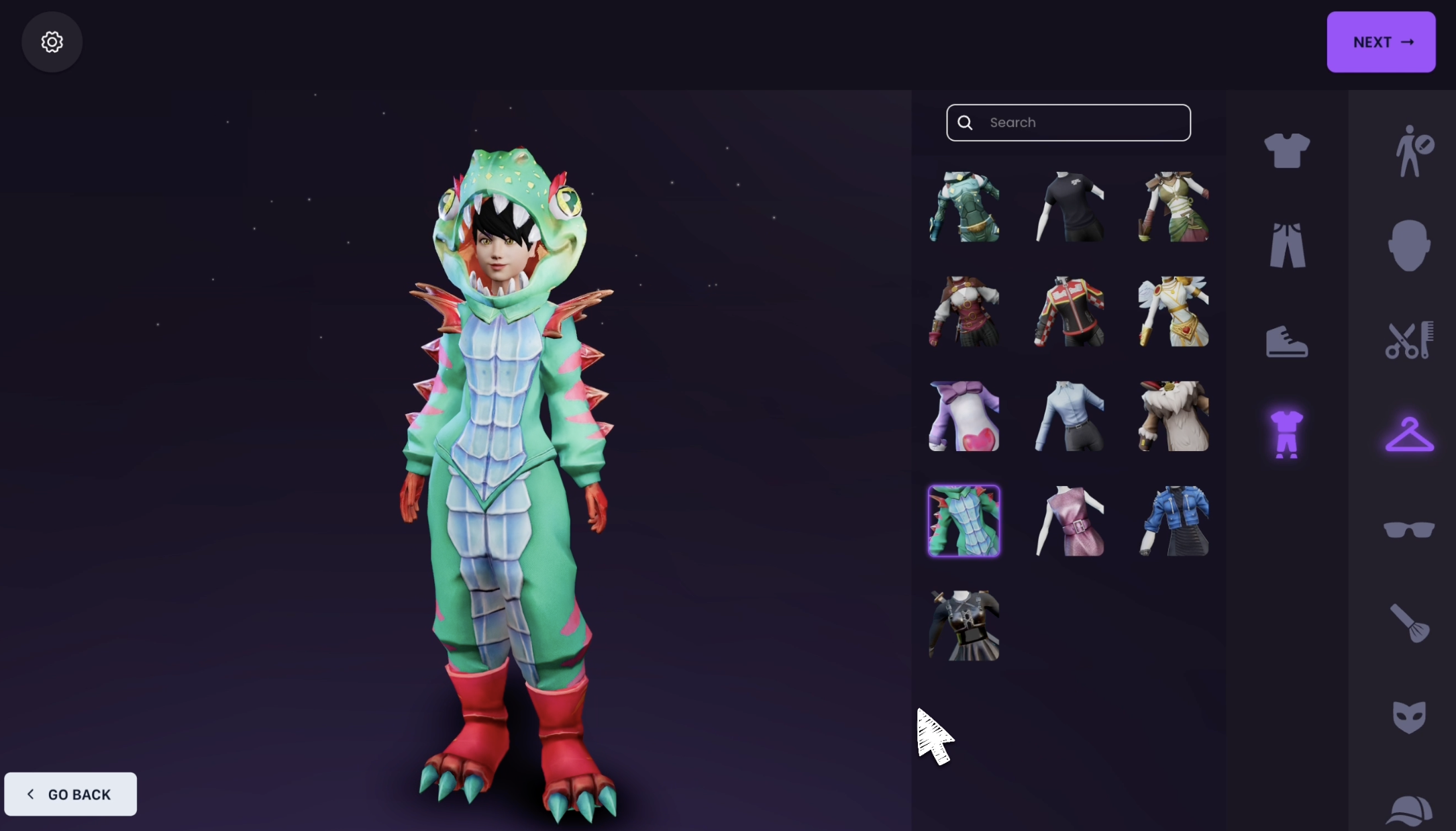
Save your avatar
Once you're happy with your avatar, click Next to save your virtual self.

Additional Customization
After your initial setup you can return to your profile anytime to make changes or try something new.
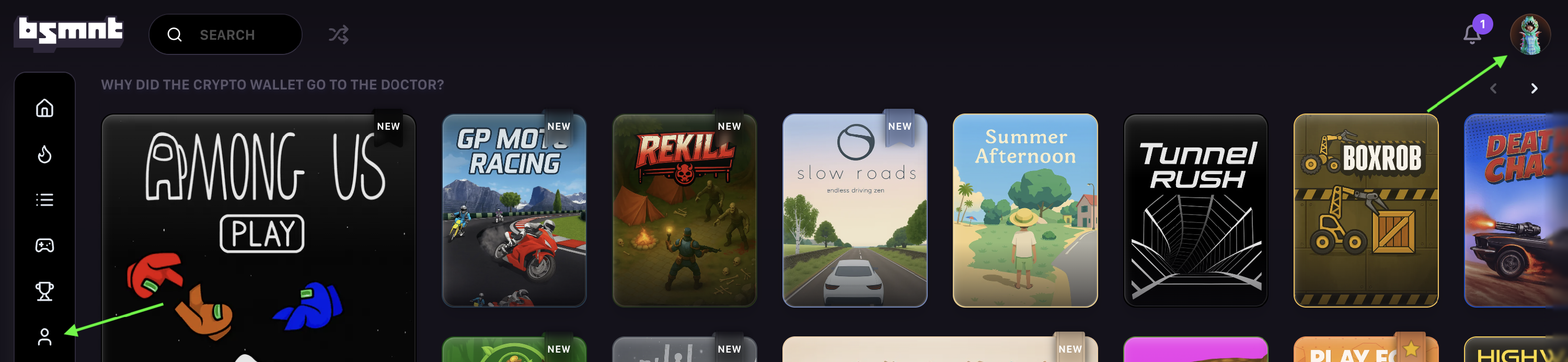
Access your profile
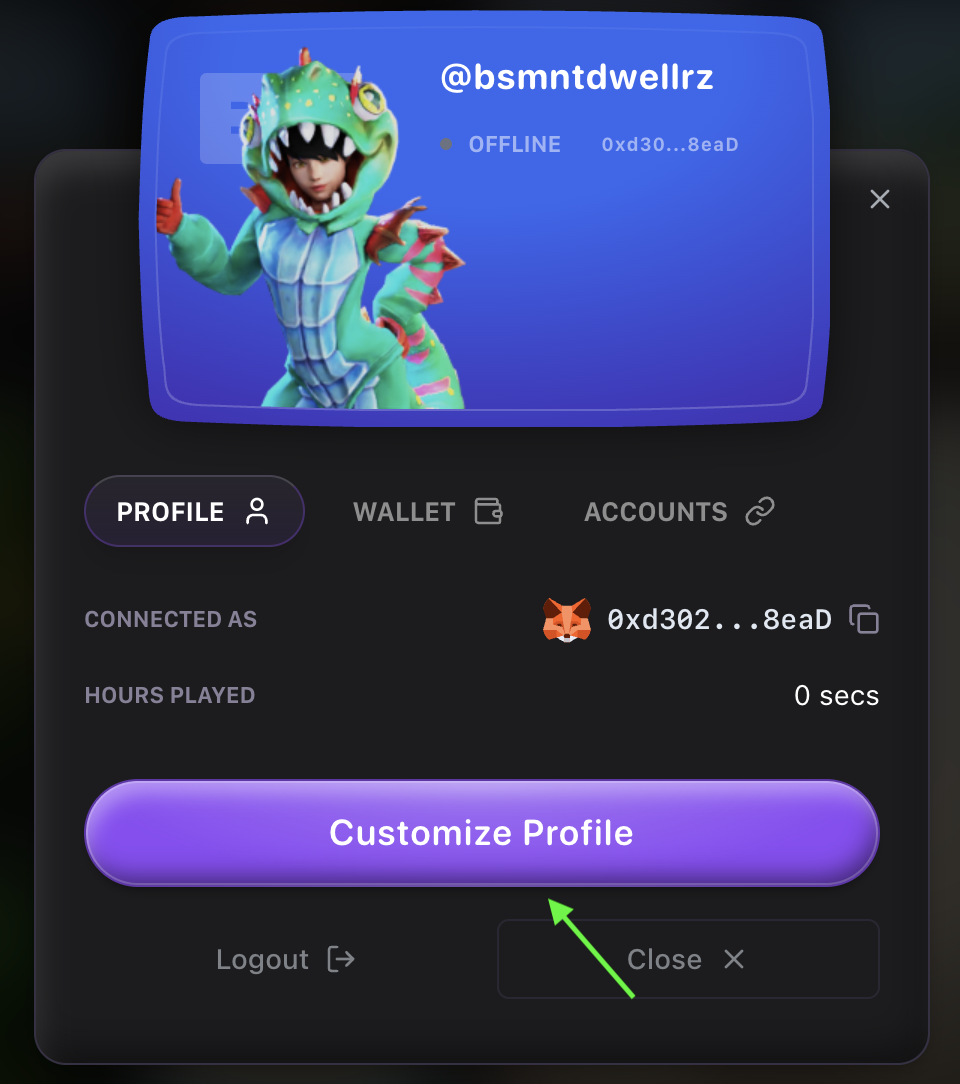
From the Basement homepage click the profile icon on either the left or right side of the page to open your profile and begin editing.
Open customization options
Next, click Customize Profile.
Available Customization Options
Username Change your public display name at any time
Avatar Edit your avatar's appearance to refresh your look
Express Yourself Add a custom hand-drawn signature and choose a profile theme that matches your vibe
Want a quick walkthrough? Watch this short video to see each customization option in action: